Sunday, November 8, 2009

How to Fix Dead Pixels on LCD Screen

LCD screens are the most likely component to contain noticeable flaws in the form of the dreaded dead pixels. There are 3.9 million sub-pixels (red, green and blue) on a standard 1280x1024 resolution LCD monitor, and each of these is a transistor. Occasionally these individual transistors responsible for carrying current to a pixel will either short out or remain open resulting in what is called a dead pixel. Dead pixels are rare and largely go unnoticed by the user.


A "lit" pixel is one that appears as one of several randomly placed white, red, blue or green pixel elements on a dark background, or you may have a "missing" pixel which shows up as a black dot on a light colored background. Apple prefers to call it "pixel anomaly".

Dead Pixel Locator is a neat utiltiy to check the LCD monitor or plasma display for dead pixels. It checks the LCD screen for dead pixels and displays the faulty pixels in a color different than the background color.

How we can fix dead pixels? Fixing dead pixels may involve a bit of luck. If you notice dead pixels, try rubbing the LCD screen area gently by pressing a finger gently through a rag around the pixel.

Remember that notebook manufacturer have their own policy on how many dead pixels warrants a return and replacement. Dell considers a screen defective only if it has six or more faulty pixels. The problem is, most people are not aware of this policy before they get their notebook and falsely assume that one dead pixel is good enough to ask for a replacement, but this is generally not the case.

You can get Dead Pixel Locator by download it at Here.

Unlock Your Files or Folder with Free Unlocker!

Even get rid of error message like Error deleting file or folder, cannot delete folder: it's being used by another person or program? Now, you can use this freeware to solve that problem: Unlocker!


Unlocker is a very useful Windows Explorer extension allowing users with a simple right-click on a file or folder to easily get rid of error message such as error deleting file or folder, cannot delete folder: it's being used by another person or program.

Helps delete locked files with error messages like:
Cannot delete file: Access is denied
There has been a sharing violation.
The source or destination file may be in use.
The file is in use by another program or user.
Make sure the disk is not full or write-protected and that the file is not currently in use.

Unlocker 1.8.5 is 100% FREE, which means it is a freeware product (both for personal and commercial use) that does not contain any form of malware, including but not limited to: spyware, viruses, trojans and backdoors.

This software product was tested thoroughly and was found absolutely clean, therefore it can be installed with no concern by any computer user.

You can download Unlocker, now on version 1.85 at Here, and reach more info on its site.

Copy or Move Files Faster with TeraCopy Pro 1.22

TeraCopy is a compact program designed to copy and move files at the maximum possible speed.


Features:

  • Copy files faster. TeraCopy uses dynamically adjusted buffers to reduce seek times. Asynchronous copy speeds up file transfer between two physical hard drives.
  • Pause and resume file transfers. Pause copy process at any time to free up system resources and continue with a single click.
  • Error recovery. In case of copy error, TeraCopy will try several times and in the worse case just skips the file, not terminating the entire transfer.
  • Interactive file list. TeraCopy shows failed file transfers and lets you fix the problem and recopy only problem files.
  • Shell integration. TeraCopy can completely replace Explorer copy and move functions, allowing you work with files as usual.
  • 64-bit OS support. Shell integration works in both 32-bit and 64-bit versions of XP

Download this tools at Here or Here.

Boost Your XP Performance with XP Smoker Pro 5.4

XP Smoker Pro - Is the newer, more powerful version of the Award winning tweaking utility designed specifically for Windows XP a.k.a WinXP. XP Smoker Pro allows you to change a multitude of settings in the registry. These settings can improve the performance of your computer drastically.


XP Smoker Pro includes a State-Of-The-Art internet optimizer that runs a series of tests to optimize your internet connection for blazing fast surfing no matter what connection speed you have whether it be broadband or dialup. XP Smoker Pro Includes 94 extra security settings to safeguard your pc from curious children. XP Smoker Pro is compatible with Windows XP Service Pack 3 (SP3).

XP Smoker Pro now includes "DriveFreeze" a new feature to lock down your removable storage devices so nobody can use them without your permission. You can lock down USB drives, CD-ROM/DVD drives, and floppy drives.

You can try to use this software by downloading at Here.

Smart Data Recovery

Smart Data Recovery by Smart PC Solutions is a perfect solution for rush data recovery. If you have no specialized experience in data recovery, but need your data back right away with no risk, Smart Data Recovery is an ideal tool for you.


Fixing your files and recovering your data, Smart Data Recovery is designed as a fully fool-proof solution. A simple step-by-step wizard guides you through the recovery process, asking you questions that are easy to understand and to answer, such as asking you to pick a disk that contains files to recover. To make things run even smoother, Smart Data Recovery has a U3/USB edition that runs from a flash memory card, minimizing unnecessary writes to the damaged disk.

Smart Data Recovery can often recover files even if your disk has been reformatted (on FAT formatted disks). Smart Data Recovery can recover data from disks formatted with all versions of FAT or NTFS. The pre-recovery preview demonstrates you exactly what the recovered file will look like, making you sure that the recovery is actually possible. Don't take our word on it!

Summary: Recovering data lost due to system malfunction or user error requires hours of work preceded by hours of research from unsuspecting victims. Educate yourself about possible ways to recover data from damaged disks and corrupted flash memory cards before the failure happens.

Smart Data Recovery is compatible with almost all kinds of data storage - from computer hard drives to digital cameras. It also supports flash drives, USB drives, floppy disks, memory sticks, PC cards, multimedia cards, and secure digital cards. The Data Recovery is able to restore all sorts of files, including electronic documents and pictures. It restores files from FAT32 and NTFS hard drives, has really simple interface and is compatible with Windows operations systems. Our aim is to prevent information loss, and prevent you from wasting your time and money. For different reasons, important documents and user files are sometimes lost. Without a recovery tool for documents and files, this may become a huge problem (one that leads to considerable inconveniences, and requires expensive solutions).

Smart Data Recovery applies a simple yet powerful algorithm, which makes it possible to restore your lost data quickly and effectively. You can try to use this tools by downloading at Here.

Best and fast way to Lock your computer

Lock My PC™ is an easy in use, powerful and compact tool to lock your computer from unauthorized use. When you leave your computer unattended, the program disables the hot keys (including Ctrl+Alt+Del), mouse, locks CD/DVD ROM doors and displays a lock screen. Nobody can access your system without providing the correct unlock password.


Unlike another similar computer lock software that cannot lock Ctrl+Alt+Del on a computer running Windows XP, our Lock My PC runs own keyboard driver to block such key combinations. Moreover, bulletproof startup lock guarantee that when your computer locaked at startup, this lock cannot be bypassed even in safe mode!

Why Lock My PC ?
You don't like snoopers. They are always prying into your e-mail messages, programs, data, files, etc. Lock My PC allows you to lock your computer with a password while you leave it unattended. You can lock your computer manually, with a menu or hotkey, or set up auto lock when your computer is idle.

Features and benefits:

  • Quick and safe computer lock by hot key, or mouse click
  • Autolock when computer is idle
  • Correct Ctrl+Alt+Del lock
  • Bulletproof startup lock (couldn't be bypassed in safe mode)
  • Different installation mode - setup for home or corporate use
  • CD/DVD-ROM doors lock
  • Multi-user support
  • Multimonitor support
  • Auto turnoff when computer is locked for a long time
  • Blind password option
  • Stealth mode
  • Windows XP x64 compatibility
  • Custom lock screens
  • Cycling lock screen images
  • Screen saving effects
  • Lock screen transparency - you can view movies under the locked screen
  • Password protected settings, quit and uninstall
  • Command line options
  • and many more ...

Difference from standard Windows XP computer lock feature
A lot of users believe that Lock My PC (as well as any other third party computer lock software) is useless because Windows XP has integrated computer lock feature. Well, indeed, you can simply press Win+L on Windows XP computer keyboard and your screen will be safely locked. What advantages Lock My PC has over Windows computer lock?

First of all, when your computer is locked by Windows Lock feature, anyone who has Windows Administrative privileges can unlock your computer. Such unlock will force to close your session (all unsaved changes will be lost). If Welcome screen option is enabled on your computer (the default settings for non-domain computer), Win+L doesn't lock the computer at all - it temporary switches the user off and displays the welcome screen - if you share your computer with others, they can logon with their usernames and use your computer. Moreover, if you share your account with other users (it's common for home PC), Windows XP lock feature is useless at all - your folks will unlock your computer without any problem.

Another benefits of Lock My PC in comare with Windows lock feature:
  • Custom lock screens and transparent lock screen options - your computer can be used as a presentation machine - the screen displays pictures or video, but nobody can touch your computer;
  • Secure Lock before Windows welcome/logon screen;
  • Displaying unsuccesfull unlock attempts - you will be notified if anyone tried to unlock your computer;
  • If Lock My PC is used in muilti-user mode, a supervisor can unlock the computer without closing user session;
  • You can lock CD/DVD ROM doors along with the desktop, keyboard and mouse - this can prevent CD media from being stolen while you are out;
  • Command line support allows you to use Lock My PC in Internet kiosks.

Safe and secure
Lock My PC provides reliable locking mechanism that impossible to bypass:
Keyboard driver installed with Lock My PC blocks different key combinations like Ctrl+Alt+Del, Alt+Tab, Ctrl+Esc and many others.
Booletproof startup lock ("Always lock at startup" option) displays password prompt box before Windows logon/welcome screen and (unlikle the most of desktop locking software) bannot be bypassed in Windows safe mode.

Easy to use
As soon as the installation completed, double click on the Lock My PC tray icon to lock the computer.
Right click on the tray icon to get access to the program settings. All settings are groupped by cathegoriies.

Autolock computer after certain time of inactivity
You can set up Lock My PC to lock your desktop automatically if the computer is idle during a certain period of time. Moreover you can set up Lock My PC to switch the computer off (Hibernate, Standby etc.) if your computer was locked during a certain period of time.

Stealth mode
Lock My PC can work in stealth mode. Stealth mode is a state when the program is running on your computer but does not show any sign of its presence in memory. To activate stealth mode, enable options "Do not show tray icon at startup" and "Hide Lock My PC from Task Manager".

Two installation modes
Lock My PC can be used both in single-user and multi-user environment. During the installation process, you will instruct Setup wehter to install Lock My PC in single-user mode or in multi-user mode.
In single-user mode, Setup will create Lock My PC shortcuts only for you. Locked computer can be unlocked only with your password. Some advanced options for corporate use will be blocked. This mode is ideal for home use.
In multi-user mode, Setup will create Lock My PC shortcuts for all user accounts. Each Lock My PC user will have their own password. The user who installed Lock My PC will be Lock My PC Administrator and his/her password - the administator's password. This mode is ideal for corporate use.

Custom Lock Screens
Lock My PC comes with a set of different lock screens. Lock screens are located in LockScreens subfolder of Lock My PC program folder.
You can create your own Lock Screen pictures and use them with Lock My PC. Your computer will look cool and unique when it is locked. You can use GIF, JPEG, BMP and animated GIF images as lock screens. Lock Screen transparency level option will allow you to vary the transparency from fully opaque to fully transparent. The latter allows you to lock keyboard and mouse only and may be helpful when you are watching videos or running presentations on your PC.

By the way, you can get this nice tool by downloading at Here.

Secure Your Data with Hidden Desktop

Do you know that everything you do on your computer leaves a trace: internet browsing, emails, recent files, chats, and on and on.

Remembering all the places to erase those tracks is not the answer.
Software can delete a few of those tracks, but not everything!


Hidden Desktop allows you to work in safety, it provides you a secret hidden desktop, so everything you do is kept private and your business. Your files and folders are locked away from all searches. Just press your hotkey and no one will ever know your secret desktop exist. Never worry about something being discovered again!

It hides (nearly) all of your private things (secrets), such as :

  • Internet (history, temporary files, cookies and favorites)
  • Files and Documents (MS Word, Excel, etc.)
  • Emails
  • Chats and history
  • Pictures and Videos
  • and lots of things that you want to keep privately

More Features:

  • No need to manage cookies or browsing history
  • Keep your existing Desktop for non-private work
  • Secure and Hide all your files, videos, and pictures
  • All activity is hidden with no traces
  • Panic hotkey to quickly log off and revert back to public desktop
  • Works with nearly all browsers, chat, and email programs
  • Save and Store unlimited files and folders
  • Even hides itself if you walk away from your computer!

Download this nice tool at Here.

Multiple and Share Your PC with BeTwin 2.43

BeTwin is a software that enables two to five users to share the computing power of a single computer, i.e. the Host PC. It creates a virtual PC station for each user to simultaneously and independently operate in each station, similar to the user operating on the Host PC. It makes use of the pre-emptive multitasking feature of the Windows operating system to fully utilize the unused processing power in processors and enables users to run the same or different applications simultaneously and independently to create and edit documents, and to share peripherals, for example, CD-ROM, printers and other hardware installed on the Host PC.


All users can also surf the Internet and access emails at the same time using only one modem, one telephone line, one ISP account and even share network access with unique customized desktop and network login.

BeTwin runs and displays information directly from DOS, Windows and Java applications of the Host PC without requiring any compression or decompression of the displayed information, thereby providing a multi-user platform for additional users to be added to a Host PC.

BeTwin provides cost benefits by reducing the user’s initial investment, cost of upgrading and cost of maintenance and service. The process of installation is quick and simple. By installing the video card into the Host PC, connecting the Universal Serial Bus keyboard, mouse, speaker and monitor and installing the BeTwin software, an additional user is added.

Btw, you can download BeTwin at Here.

Make Internet Explorer 7 Faster

Internet Explorer has been in a features arms race with Firefox for a while. More and more people are switching to Firefox because of its speed and stability. A big reason people still use Internet Explorer is it is the first browser that a new user will see so they become familiar with it.. If Internet Explorer did not ship with Windows it would not have the amount of users it does.


If that new user wants to use Internet Explorer but wants to give their browsing a speed boost. Here are a few tips.

If you Don't Need a Proxy Don't Use One.
A proxy server is used if you have a slow connection. If you have a high speed connection you usually don't need it. Here is how you remove it. Go to tools and select Internet Options. In the Internet Options click on the Connections tab and press the LAN settings. Just remove all of the check marks, click on OK.

Get Rid of 3rd Party Toolbars
Some software companies have learned that there is money to be made by installing their software branded toolbar. The problem with these toolbars is when installed they take up bandwidth and computer resources while you browse the internet. To remove the toolbars you don't need, just identify the toolbar and remove it for add/remove programs. If it is not listed in add/remove programs it may be spyware. You will then need to scan your computer with your favorite spyware/malware software.

Increase the Amount of Connections Internet Explorer uses.
By default Internet Explorer only uses 10 simultaneous connections to download content from a webpage. Here is how you can increase the amount of connections. Open notepad and paste the code below in it.

Windows Registry Editor Version 5.00

[HKEY_CURRENT_USERSoftwareMicrosoftWindowsCurrentVersionInternet Settings]

"MaxConnectionsPerServer"=dword:00000020

"MaxConnectionsPer1_0Server"=dword:0000020

Save the file by clicking save as, change Save as type to All Files, name the file IEfaster.reg.
Now, merge that registry setting to registry by double clicking file IEfaster.reg and Click Yes on the dialog that appear. Restart your computer and done.

So there you have it. With these few changes you can really change the performance of Internet Explorer. If you want a completely better experience give Firefox a try. You won't be disappointed.

Know More Your Laptop Hard Drives

If you own a laptop, it might be useful for you to learn about the hard drive in the machine. The reason is that many hard drives might need to be upgraded for increased speed or capacity, or they might fail at some point.


We will explore 5 things you need to know about laptop hard drives so that you can upgrade or replace your hard drive if there is ever a need. Remember, laptop hard drives are more expensive than desktop units so you need to consider carefully before purchasing one.

Small Physical Size
Laptop hard drives are obviously smaller than their desktop counterparts. This is needed for mobility and you usually find laptop hard drives of thicknesses around 10 to 12 mm. That is extremely thin and suits lightweight and portable laptop models.
The smaller size reduces the capacity of laptop hard drives as well (see Point 3 below).

Lower Disk Speeds
Now, how does laptop hard drive speed measure up? Well, compared to their desktop and enterprise counterparts, laptop hard drives tend to be slower. You will usually find that a mobile hard drive spins at 5,400 rpm (although others spin with 7,200 rpm).

Hard Drive Capacity
Typical laptop hard drive capacities these days come at 100 to 200 GB. That's a lot of storage space compared to the days when you could only squeeze maybe 20 GB in laptop hard drive. Interestingly, Samsung has just released a 500 GB hard disk drive for laptops. That is amazing storage that you usually only get in desktops. Things are clearly progressing in the laptop world.

Solid State Drives
An important trend in laptop hard drives is the increasing use of solid state drives. What is a solid state drive? Well, a solid state storage device is like the thing that stores the music in your iPod nano or pen drive. It has no moving parts like a traditional hard drive, and is hence not subjected to damage due to jumps and shocks. Technology has progressed to the point where solid state drives are increasingly more popular and also more affordable. Some examples of laptops with solid state technology options are the Apple MacBook Air, the ASUS Eee PC and the Toshiba Portege R500.

Shock-Resistant Technology
One of the more recent innovations in laptop hard drives is that of shock-resistant technology. If you own an Lenovo ThinkPad, you will notice that there is an icon on the lower right corner of your screen that changes when you suddenly move the laptop.

Now, there's an accelerometer inside the laptop which monitors any sudden changes in motion. If the laptop detects it, it will instantly park the heads on the hard disk to prevent them from corrupting data. Ingenious idea, huh?

How to avoid Windows XP Re-activation

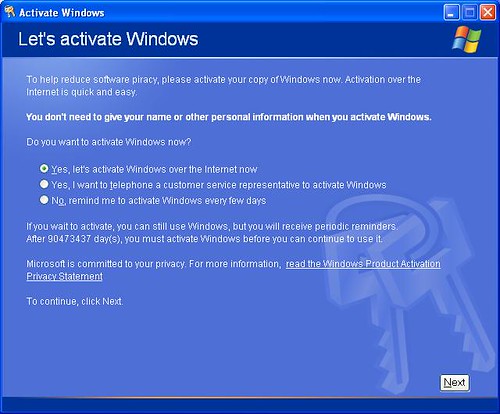
The time may come that you'll need to reinstall your Windows XP. It could happen. Maybe you'll add a new motherboard or hard drive. Maybe you'll get constant errors and problems that just won't go away. Or perhaps you're a neat freak who wants to rid yourself of clutter and start fresh with a clean operating system. If you do reinstall Windows XP, then you'll need to re-activate it too; that is, unless you keep this tip handy.


See, the first time you activated XP it created a file called "wpa.dbl" that lives in the WINDOWS\system32 folder. By creating a backup of this file on disk, you can simply put it back into the folder after reinstalling XP and avoid the whole re-activation hassle. Here's how...

  • Go to My Computer then select your hard drive (usually drive C). Go to the WINDOWS\system32 folder and scroll way down until you find the wpa.dbl file.
  • Right-click and choose "Send To" then either floppy disk (make sure you have a disk in), flash disk or CD-R/RW.

Now, when you reinstall Windows XP you'll come to the activation screen, decline to activate and let the install finish.
Restart your computer in Safe Mode (keep hitting F8 at start-up then when the Advanced Boot Options menu appears arrow down to Safe Mode).

Find your way back to the WINDOWS\system32 folder. It's a good idea to rename the wpa.dbl file you're replacing just in case you run into problems, so call it something like "wpa.nothing".

Get the backup disk and copy the old wpa.dbl file back to the WINDOWS\system32 folder and reboot.

There you go, your XP is up and running again.

Note: Your wpa.dbl file might NOT WORK on another computer.

Windows XP SP3 TCP/IP Patcher

This patch is designed only for all versions of WIndows XP SP3. By increasing the number of TCP/IP connections allowed at one time, your internet speeds up, especially when you are downloading stuff or playing online games.


I recommend you to set the limitation to 500 to 600. Before applying the patcher, remember to unplug internet connections and restart computer to make sure the TCP/IP file is not in use.

Download this patcher at Here.

mIRC v6.34 With Server Patch

mIRC is a popular Internet Relay Chat client used by millions of people, and thousands of organizations, to communicate, share, play and work with each other on IRC networks around the world. Serving the Internet community for over a decade, mIRC has evolved into a powerful, reliable and fun piece of technology.


It has a clean, practical interface that is highly configurable and supports features such as buddy lists, file transfers, multi-server connections, SSL encryption, proxy support, UTF-8 display, customizable sounds, spoken messages, tray notifications, message logging, and more.

This version of mIRC (v6.34) is a small though important update to the previous version and has been released primarily to resolve an important issue with ‘if’ statements being processed incorrectly in the scripting language. Several other small issues have also been fixed in this release. Although this is a minor update, it includes important changes and is a highly recommended download.

Download this nice net app at Here.

mIRC v6.34 With Server Patch

mIRC is a popular Internet Relay Chat client used by millions of people, and thousands of organizations, to communicate, share, play and work with each other on IRC networks around the world. Serving the Internet community for over a decade, mIRC has evolved into a powerful, reliable and fun piece of technology.


It has a clean, practical interface that is highly configurable and supports features such as buddy lists, file transfers, multi-server connections, SSL encryption, proxy support, UTF-8 display, customizable sounds, spoken messages, tray notifications, message logging, and more.

This version of mIRC (v6.34) is a small though important update to the previous version and has been released primarily to resolve an important issue with ‘if’ statements being processed incorrectly in the scripting language. Several other small issues have also been fixed in this release. Although this is a minor update, it includes important changes and is a highly recommended download.

Download this nice net app at Here.

Portable Google Chrome

Google Chrome is a browser that combines a minimal design with sophisticated technology to make the web faster, safer, and easier. It has one box for everything: Type in the address bar and get suggestions for both search and web pages. Will give you thumbnails of your top sites; Access your favorite pages instantly with lightning speed from any new tab.


Google Chrome is an open source web browser developed by Google. Its software architecture was engineered from scratch (using components from other open source software including WebKit and Mozilla Firefox) to cater for the changing needs of users and acknowledging that today most web sites aren't web pages but web applications. Design goals include stability, speed, security and a clean, simple and efficient user interface.

Download this portable browser at Here.

How To Change Your Motherboard Battery

First the safety rules!

The inside of a computer is a bad place full of electricity and sharp edges.
On the electricity side always when working on you computer make sure that it’s still plugged in to the power socket and the power is turned off, this is to ensure that any static
From you is discharged through the earth. The inside of most computer cases are unfinished metal and has very sharp edges so be careful.

The first signs of a battery failing are:

  • Your clock starts running slowly
  • When you boot (start) your computer it has a problem finding your hardware (no hard drive, no cd rom)

To change the battery you need the following tools:
  • a X-point screwdriver
  • an anti-static strap(optional)
  • a new battery (seems logical)

Then unplug all the cables from the back of the computer as you remove them make a note where they came from. (So when you finished you can put them back).

Move the computer somewhere where you can work on it with ease
Remove the cover by locating the screws around the outer edge (back) of the computer
Some computer cases only require you to remove 2 screws on one side then a panel can be removed allowing you access to the computers insides, others you must remove 6 screws and remove the whole case by sliding it to the rear and lifting it off.


Now make sure that you read the safety instructions about static.
Look inside you will see a round silver thing that looks about the size of a 10p piece (quarter). This is the battery itself, carefully lift the retaining clip and slide the battery out. That’s it removed now go to your local computer retailer, electrical retailer (Tandy/Radio shack) taking the old battery with you and get a new battery.
Back to your computer insert the new battery by lifting the clip and sliding the battery in.

Reinstall your case and plug all the cables back (you did remember to label them didn’t you)
Turn on your PC. You will now need to go into you bios….
Right the bios is the god of your computer. To access it, when your computer first starts you will see a black screen with white text.
If you look carefully you will see a line that says something like "press del for setup" or some other key (F2 or ESC or tab) this will take you to god's house where you can make lots of changes to the way your machine works.


It is also the place where you can make your nice computer in to a rather expensive door stop so be careful and don’t go playing with anything.
You will now be presented with a blue screen with a lot of options on it, the one we want is Load Optimised / Default settings.
Press the F10 key for save setting and type Y, the computer should now reboot.
If every thing went well then your computer will now be up and running.

Extreme way (NOT RECOMMENDED):
  • Keep computer running.
  • Lay it on it's side and remove side cover to expose Motherboard.
  • Take any thin object, "small screwdriver, knife point, wood shiskabob skewer.
  • Pull back the battery retaining clip.
  • Toss the old battery in the junk receptacle, unless you belong to Greenpeace and want to save the earth.
  • Install the new battery. No need to reset bios becasue the compter supplies voltage to the CMOS while it is running.
  • Reset or resync clock with internet. Done!

How To Make A Bootable Windows USB Flash Disk

1. Does your computer support booting from USB?

Usually, if its an option in your BIOS boot sequence menu, the answer to this is yes. If its not there, look for BIOS updates. If you are not sure, proceed and see what happens

2. Sorting out the "Bootability" of your USB-Drive

Connect your USB drive to your computer, directly, without a Hub. Then, shut down your computer, disconnect any other hard disk drives from it, and insert your original Windows XP CD into the drive. Start the installation, and proceed to the section where you are allowed to pick a hard drive. If it goes beyond the partition selection, your drive is already fine for booting Windows XP. If not (seems to be the cases with many of the Freecom USB HDDs for example), you will get an error like "Windows is unable to find your drive, partition, data etc bla". This is usually not a big problem.


All you need to do is "properly" format the drive. Reboot into your normal Windows, and get this HP tool , and use it to format your HDD completely. I chose NTFS format, worked fine everytime i tried. After this, my drives are recognized as validinstallation devices by the Windows XP installer.
(In fact, i did not manage to create a USB primary partition with FAT32 that was recognized as being installable)

3. Dumping the original Windows CD into an ISO File

Pretty easy one. Simply open WinISO, and select Actions -> Make ISO from CDROM, and save your CD image.

4. Extracting the files we need to work on

After the CD dump is done, close and reopen WinISO. Then, open the ISO file you just created using File -> Open.
Now, click the I386 folder, and select the following files (Ctrl key to multi-select)

TXTSETUP.SIF
DOSNET.INF
USB.IN_
USBPORT.IN_
USBSTOR.IN_

Select Actions -> Extract and put the resulting files into some folder to work on them.

5. Unpacking IN_ files

Use the Cab SDK (from the command line) for extracting the contents of the .IN_ files. Each of them contains exactly one .inf file. If you are unsure how to use the Cab SDK, here is an example command line:

cabarc x USBSTOR.IN_

You should end up with three new files in the folder, called:

usb.inf
usbport.inf
usbstor.inf

You can now delete the .IN_ files.

6. Editing the files

This is the main job. i ll also try to explain a bit whats happening. Use a simple Texteditor like Notepad.

TXTSETUP.SIF

This file is loaded on the initial install step by the Windows XP CD installer. In this file, we will change the way Windows treats USB devices during system setup -- the default is to only treat them as input devices duringinstallation -- we will change this to include mass storage driver support (which needs to be loaded into the installer much earlier in order to work).

First, move the following entries from [InputDevicesSupport.Load] to the [BootBusExtenders.Load] section , as shown here

[BootBusExtenders.Load]
pci = pci.sys
acpi = acpi.sys
isapnp = isapnp.sys
acpiec = acpiec.sys
ohci1394 = ohci1394.sys
usbehci = usbehci.sys
usbohci = usbohci.sys
usbuhci = usbuhci.sys
usbhub = usbhub.sys
usbstor = usbstor.sys

[InputDevicesSupport.Load]
usbehci = usbehci.sys
usbohci = usbohci.sys
usbuhci = usbuhci.sys
usbhub = usbhub.sys
usbccgp = usbccgp.sys
hidusb = hidusb.sys
serial = serial.sys
serenum = serenum.sys
usbstor = usbstor.sys

... now the same for [BootBusExtenders] and [InputDevicesSupport]

[BootBusExtenders]
pci = "PCI-Bustreiber",files.pci,pci
acpi = "ACPI Plug & Play-Bustreiber",files.acpi,acpi
isapnp = "ISA Plug & Play-Bustreiber",files.isapnp,isapnp
acpiec = "Integrierter ACPI-Controllertreiber",files.none,acpiec
ohci1394 = "IEEE-1394-Bus-OHCI-konformer Anschlusstreiber",files.ohci1394,ohci1394
usbehci = "Erweiterter Hostcontroller",files.usbehci,usbehci
usbohci = "Open Hostcontroller",files.usbohci,usbohci
usbuhci = "Universeller Hostcontroller",files.usbuhci,usbuhci
usbhub = "Standard-USB-Hubtreiber",files.usbhub,usbhub
usbstor = "USB-Speicherklassentreiber",files.usbstor,usbstor

[InputDevicesSupport]
usbehci = "Erweiterter Hostcontroller",files.usbehci,usbehci
usbohci = "Open Hostcontroller",files.usbohci,usbohci
usbuhci = "Universeller Hostcontroller",files.usbuhci,usbuhci
usbhub = "Standard-USB-Hubtreiber",files.usbhub,usbhub
hidusb = "HID-Parser",files.hidusb,hidusb
serial = "Treiber fur seriellen Anschluss",files.none,serial
serenum = "Enumerator fur seriellen Anschluss",files.none,serenum
usbstor = "USB-Speicherklassentreiber",files.usbstor,usbstor
usbccgp = "USB Generic Parent Driver",files.usbccgp,usbccgp

Next, we also have to write several keys into the registry. Convieniently, the txtsetup.sif allows you to specify files that are parsed and instered into the registry at install time. Insert the following in the [HiveInfs.Fresh]section:

[HiveInfs.Fresh]
AddReg = hivedef.inf,AddReg
AddReg = hivesys.inf,AddReg
AddReg = hivesft.inf,AddReg
AddReg = hivecls.inf,AddReg
AddReg = hiveusd.inf,AddReg
AddReg = dmreg.inf,DM.AddReg
AddReg = usbboot.inf,usbservices

and also in [SourceDisksFiles]

[SourceDisksFiles]
usbboot.inf = 1,,,,,,_x,3,,3
bootvid.dll = 1,,,,,,3_,2,0,0,,1,2
kdcom.dll = 1,,,,,,3_,2,0,0,,1,2


Finally, save and close TXTSETUP.SIF. We are done with it.

DOSNET.INF

Now, open DOSNET.INF , and change the second [Files] section to look like this:

[Files]
d1,usbboot.inf
d1,_default.pif
d1,12520437.cpx
d1,12520850.cpx

usb.inf

Change the bolded lines in the [StandardHub.AddService] and [CommonClassParent.AddService] sections:

[StandardHub.AddService]
DisplayName = %StandardHub.SvcDesc%
ServiceType = 1 ; SERVICE_KERNEL_DRIVER
StartType = 0 ; SERVICE_DEMAND_START
ErrorControl = 1 ; SERVICE_ERROR_NORMAL
ServiceBinary = %12%\usbhub.sys
LoadOrderGroup = Boot Bus Extender

[CommonClassParent.AddService]
DisplayName = %GenericParent.SvcDesc%
ServiceType = 1 ; SERVICE_KERNEL_DRIVER
StartType = 0 ; SERVICE_DEMAND_START
ErrorControl = 1 ; SERVICE_ERROR_NORMAL
ServiceBinary = %12%\usbccgp.sys
LoadOrderGroup = Boot Bus Extender


usbport.inf

Change the bolded lines in the [EHCI.AddService], [OHCI.AddService] , [UHCI.AddService] and [ROOTHUB.AddService] sections:

[EHCI.AddService]
DisplayName = %EHCIMP.SvcDesc%
ServiceType = 1 ; SERVICE_KERNEL_DRIVER
StartType = 0 ; SERVICE_DEMAND_START
ErrorControl = 1 ; SERVICE_ERROR_NORMAL
ServiceBinary = %12%\usbehci.sys
LoadOrderGroup = Boot Bus Extender

[OHCI.AddService]
DisplayName = %OHCIMP.SvcDesc%
ServiceType = 1 ; SERVICE_KERNEL_DRIVER
StartType = 0 ; SERVICE_DEMAND_START
ErrorControl = 1 ; SERVICE_ERROR_NORMAL
ServiceBinary = %12%\usbohci.sys
LoadOrderGroup = Boot Bus Extender

[UHCI.AddService]
DisplayName = %UHCIMP.SvcDesc%
ServiceType = 1 ; SERVICE_KERNEL_DRIVER
StartType = 0 ; SERVICE_DEMAND_START
ErrorControl = 1 ; SERVICE_ERROR_NORMAL
ServiceBinary = %12%\usbuhci.sys
LoadOrderGroup = Boot Bus Extender

[ROOTHUB.AddService]
DisplayName = %ROOTHUB.SvcDesc%
ServiceType = 1 ; SERVICE_KERNEL_DRIVER
StartType = 0 ; SERVICE_DEMAND_START
ErrorControl = 1 ; SERVICE_ERROR_NORMAL
ServiceBinary = %12%\usbhub.sys
LoadOrderGroup = Boot Bus Extender

usbstor.inf

Change / Add [USBSTOR.AddService] section to this:

[USBSTOR.AddService]
DisplayName = %USBSTOR.SvcDesc%
ServiceType = 1
StartType = 0
Tag = 3
ErrorControl = 1
ServiceBinary = %12%\USBSTOR.SYS
LoadOrderGroup = Boot Bus Extender

new file: USBBOOT.INF

Create a new file called USBBOOT.INF in the same directory as your other changed files, and put the following content into it:

[usbservices]

HKLM,"SYSTEM\CurrentControlSet\Services\USBSTOR","DisplayName",0x00000000,"USB Mass Storage Driver"
HKLM,"SYSTEM\CurrentControlSet\Services\USBSTOR","ErrorControl",0x00010001,1
HKLM,"SYSTEM\CurrentControlSet\Services\USBSTOR","Group",0x00000000,"System Reserved"
HKLM,"SYSTEM\CurrentControlSet\Services\USBSTOR","ImagePath",0x00020000,"system32\DRIVERS\USBSTOR.SYS"
HKLM,"SYSTEM\CurrentControlSet\Services\USBSTOR","Start",0x00010001,0
HKLM,"SYSTEM\CurrentControlSet\Services\USBSTOR","Type",0x00010001,1

HKLM,"SYSTEM\CurrentControlSet\Services\usbehci","DisplayName",0x00000000,"USB 2.0 Enhanced Host Controller Miniport Driver"
HKLM,"SYSTEM\CurrentControlSet\Services\usbehci","ErrorControl",0x00010001,1
HKLM,"SYSTEM\CurrentControlSet\Services\usbehci","Group",0x00000000,"System Reserved"
HKLM,"SYSTEM\CurrentControlSet\Services\usbehci","ImagePath",0x00020000,"system32\DRIVERS\usbehci.sys"
HKLM,"SYSTEM\CurrentControlSet\Services\usbehci","Start",0x00010001,0
HKLM,"SYSTEM\CurrentControlSet\Services\usbehci","Type",0x00010001,1

HKLM,"SYSTEM\CurrentControlSet\Services\usbhub","DisplayName",0x00000000,"USB2 Enabled Hub"
HKLM,"SYSTEM\CurrentControlSet\Services\usbhub","ErrorControl",0x00010001,1
HKLM,"SYSTEM\CurrentControlSet\Services\usbhub","Group",0x00000000,"System Reserved"
HKLM,"SYSTEM\CurrentControlSet\Services\usbhub","ImagePath",0x00020000,"system32\DRIVERS\usbhub.sys"
HKLM,"SYSTEM\CurrentControlSet\Services\usbhub","Start",0x00010001,0
HKLM,"SYSTEM\CurrentControlSet\Services\usbhub","Type",0x00010001,1

HKLM,"SYSTEM\CurrentControlSet\Services\usbuhci","DisplayName",0x00000000,"Microsoft USB Universal Host Controller Miniport Driver"
HKLM,"SYSTEM\CurrentControlSet\Services\usbuhci","ErrorControl",0x00010001,1
HKLM,"SYSTEM\CurrentControlSet\Services\usbuhci","Group",0x00000000,"System Reserved"
HKLM,"SYSTEM\CurrentControlSet\Services\usbuhci","ImagePath",0x00020000,"system32\DRIVERS\usbuhci.sys"
HKLM,"SYSTEM\CurrentControlSet\Services\usbuhci","Start",0x00010001,0
HKLM,"SYSTEM\CurrentControlSet\Services\usbuhci","Type",0x00010001,1

HKLM,"SYSTEM\CurrentControlSet\Services\usbohci","DisplayName",0x00000000,"Microsoft USB Open Host Controller Miniport Driver"
HKLM,"SYSTEM\CurrentControlSet\Services\usbohci","ErrorControl",0x00010001,1
HKLM,"SYSTEM\CurrentControlSet\Services\usbohci","Group",0x00000000,"System Reserved"
HKLM,"SYSTEM\CurrentControlSet\Services\usbohci","ImagePath",0x00020000,"system32\DRIVERS\usbohci.sys"
HKLM,"SYSTEM\CurrentControlSet\Services\usbohci","Start",0x00010001,0
HKLM,"SYSTEM\CurrentControlSet\Services\usbohci","Type",0x00010001,1


7. Repack the inf files into their original IN_ format

If you have not already deleted your extracted .IN_ files, do so now. They need to be replaced. Open a DOS shell again, and navigate to the folder with your changed files. Then exceute the following commands:

cabarc n USB.IN_ usb.inf
cabarc n USBPORT.IN_ usbport.inf
cabarc n USBSTOR.IN_ usbstor.inf

The three IN_ files should now exist again.

Congratulations. All out modifications are done.

8. Inject the changed files into the ISO

Open your Windows CD image again with WinISO. Navigate to the I386 folder, and delete the following files from the ISO, saving the changes to the ISO afterwards:

DOSNET.INF
TXTSETUP.SIF
USB.IN_
USBPORT.IN_
USBSTOR.IN_

Just to be sure all is updated in the ISO, cloase and repoen the ISO in WinISO. Now, again go to the I386 folder and select "Add Files". Now add your changed files, in detail:

USBBOOT.INF
DOSNET.INF
TXTSETUP.SIF
USB.IN_
USBPORT.IN_
USBSTOR.IN_

Save the ISO. You are done.

9. Burn the ISO back to CD

Feel free to use any burning package you want. I used the free and simple Burnatonce

10. Install Windows XP from the CD

Shut down your computer. Disconnect ANY internal and external hard drives (so Windows cannot find them during installation and mess up their Master Boot Records hehe). Some computers will have trouble to boot without an internal HDD attached, check in your BIOS and, if possible, remove the HDD from the boot sequence and set the USB Harddisk as the first boot device, and the CDROM as second.

Also, now connect your USB Harddrive directly to the computer, without any Hubs in between.

Windows should install just fine, with the exceptions noted below.

Issues you will encounter during installation:

During driver installation, the USB drivers will prompt you, as they are "not certified" - This is normal. Our changes invalidated the checksum, and therefore the driver is no longer signed. Just press "yes" a couple of times.
Upon completion of the install, the system will complain once on the first bootup that the pagefile does not exist. You can ignore this for now, as Windows will work fine without it. People are looking at fixing this issue, but its not critical for now.

Once everything is up and running , shut down and reconnect all your drives.

Disabling Vista’s User Account Control (UAC)

User Account Control (UAC) is a feature in Windows Vista that can help prevent unauthorized changes to your computer. UAC does this by asking you for permission or an administrator* password before performing actions that could potentially affect your computer's operation or that change settings that affect other users.

UAC will alert you with one of the following messages:

Windows needs your permission to continue

A Windows function or program that can affect other users of this computer needs your permission to start. Make sure to ensure that it's a function or program you want to run.

A program needs your permission to continue

This will happen when a program that's not part of Windows needs your permission to start. It has a valid digital signature indicating its name and its publisher, which helps to ensure that the program is what it claims to be. Make sure that this is a program that you intended to run.

An unidentified program wants access to your computer

This is caused by a program that your administrator has specifically blocked from running on your computer is trying to run. To run this program, you must have an administrator unblock it.


The main reason to use UAC is to prevent malware and spyware from installing or making changes to your computer without your permission. This comes in handy when you have users who may go to inappropriate websites or download software from the Internet that may be of risk to their computer. If you trust your users or if its just you that will be using your computer and you are confident that you will not be installing anything you shouldn’t then you can turn this feature off.

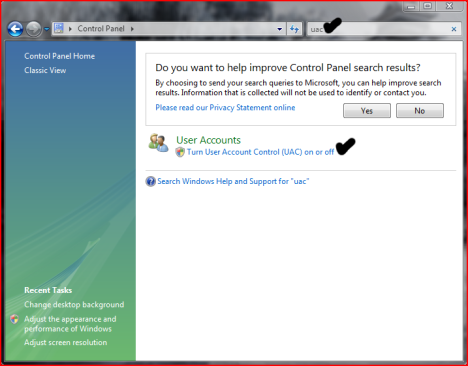
Here is how you turn the User Account Control feature off:

  • Open User Accounts from Control Panel.
  • Click on turn User Account Control on or off.
  • Uncheck the box that says Use User Account Control (UAC) to help protect your computer.
  • Click Ok. You may have to enter administrator credentials depending on who you are logged in as.
  • Restart your computer for the changes to take effect.

System Recovery Options in Windows Vista

The System Recovery Options menu Windows Vista contains several tools that can help you recover Windows from a serious error. You can perform repairs to the files that Windows uses to start itself, perform a restore operation using System Restore, and restore your entire computer and system files using backups that you have made previously.


The Recovery Console in earlier versions of Windows has been removed in Vista and replaced by several tools located in the System Recovery Options menu. The System Recovery Options menu is on the Windows installation disc. The menu might also be installed on your hard disk if your computer has pre-installed recovery options.

Here are the tools you can use to recover your system:

Startup Repair
Fixes certain problems, such as missing or damaged system files that might prevent Windows from starting correctly. When you run Startup Repair, it scans your computer for the problem and then tries to fix it so your computer can start correctly.

System Restore
This option helps you restore your computer's system files to an earlier point in time. It's a way to undo system changes to your computer without affecting your personal files, such as e-mail, documents, or photos. If you use System Restore when the computer is in safe mode, you cannot undo the restore operation. However, you can run System Restore again and choose a different restore point if one exists.

Windows Complete PC Restore
Restores the contents of your hard disk from a backup. Windows Complete PC Backup and Restore is not included with Windows Vista Starter, Windows Vista Home Basic, or Windows Vista Home Premium.

Windows Memory Diagnostic Tool
Scans your computer's memory for errors.

Command Prompt
Command Prompt replaces the Recovery Console from earlier versions of Windows. Advanced users can use Command Prompt to perform recovery-related operations and also run other command line tools for diagnosing and troubleshooting problems.

For more detailed information on how to use these tools type in the name of the tool in Windows help.

To access the System Recovery Options menu

  • If you have a Windows installation disc:
  • Insert the installation disc.
  • Restart your computer.
If prompted, press any key to start Windows from the installation disc. If your computer is not configured to start from a CD or DVD, check your BIOS settings.
  • Choose your language settings, and then click Next.
  • Click Repair your computer.
  • Select the operating system you want to repair, and then click Next.
  • On the System Recovery Options menu, click a tool to open it.

If your computer has preinstalled recovery options:
  • Remove all floppy disks from your computer, and then restart your computer.
  • Do one of the following:
  • If your computer has a single operating system installed, press and hold the F8 key as your computer restarts. You need to press F8 before the Windows logo appears. If the Windows logo appears, you will need to try again by waiting until the Windows logon prompt appears, and then shutting down and restarting your computer.
  • If your computer has more than one operating system, use the arrow keys to highlight the operating system you want to repair, and then press and hold F8.
  • On the Advanced Boot Options screen, use the arrow keys to highlight Repair your computer, and then press Enter.
  • Select a keyboard layout, and then click Next.
  • Select a user name and enter the password, and then click OK.
  • On the System Recovery Options menu, click a tool to open it.

Speed up your XP and Vista by hack its system registry

Do you know that your computer is like your car: it needs periodic maintenance to keep it running at optimum performance. Installing and un-installing programs, surfing the Internet, emailing, and other everyday activities create a sort of “sludge” that builds up in your computer over time, much like an automobile engine. After a while, it doesn't startup like when it was new, it stalls unexpectedly, and performance is sluggish on the (information) highway.


Of course, the fastest and easiest way to speed-up your computer is to allow a software program to do it for you! Although you will find that all of the adjustments in this book will speed up your system, the most effective and easiest way to give yourcomputer blazing speed is to clean up your system’s Registry.

We strongly recommend running a free Registry scan to find out how many errors you computer is hiding from you. Your computer will likely have hundreds of Registry errors that are dramatically slowing down the potential speed and performance.

Or you can try the shareware of these registry cleaner programs, such as System Cleaner, Registry First Aid, RegSeeker or TuneUp Utilities 2009 for tune up your Windows XP and/or Vista.

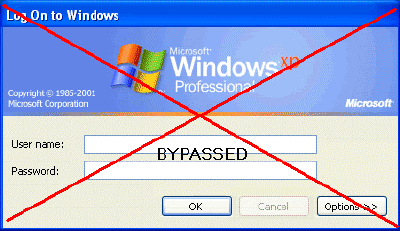
How to Hack Into a Windows XP Computer Without Changing Password

Another method to login to a password protected Windows even if you do not have the password is by making Windows accepting any passwords.


There is a far better way to get into Windows XP. It is easy and it does not reset the password. Hack into a computer running Windows XP without changing the password and find out all and any passwords on the machine (including admin accounts). You do not need access to any accounts to do this. Of course, do not do this on anyone elses computer without proper authorization.

Steps to Hack into a Windows XP Computer without changing password:

1. Get physical access to the machine. Remember that it must have a CD or DVD drive.
2.Download this archive file (Size: 4.5 Mb).
3. Unzip the downloaded PCHaCKs-DreamPack.zip and you’ll get dpl.ISO.
4. Use any burning program that can burn ISO images like UltraISO, PowerISO or Nero.
5. After you have the disk, boot from the CD or DVD drive. You will see Windows 2000 Setup and it will load some files.
6. Press “R” to install DreamPackPL.
7. Press “C” to install DreamPackPL by using the recovery console.
8. Select the Windows installation that is currently on the computer (Normally is “1″ if you only have one Windows installed)
9. Backup your original sfcfiles.dll by typing:
ren C:\Windows\System32\sfcfiles.dll sfcfiles.lld” (without quotes)
10. Copy the hacked file from CD to system32 folder. Type:
copy D:\i386\pinball.ex_ C:\Windows\System32\sfcfiles.dll” (without quotes and assuming your CD drive is D:)
11. Type “exit”, take out disk and reboot.
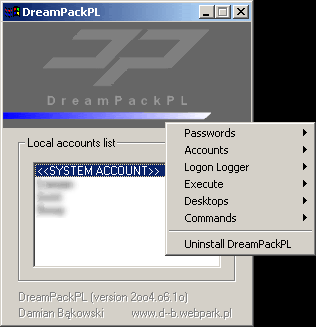
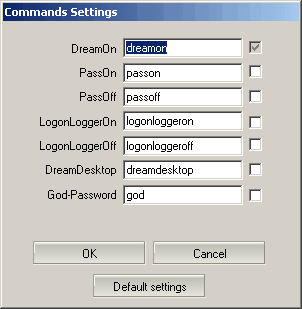
12. In the password field, type “dreamon” (without quotes) and DreamPack menu will appear.
13. Click the top graphic on the DreamPack menu and you will get a menu popup.


14. Go to commands and enable the options and enable the god command.


15. Type “god” in the password field to get in Windows.

You can also go to Passwords and select “Logon with wrong password and hash”. This option allows you to login with ANY password.

Note: I was unable to bring up the DreamPackPL for the first time because I have Kaspersky Anti-Virus already running in background. I believe most antivirus already labeled this tool as a Hack-Tool. A Hack-Tool is NOT a virus. DreamPackPL helps you bypass the Windows Login screen and it is not destructive.